Day 4 of 14 · Claude Cowork Challenge
Working with Files
⏱ 7 min
📊 Beginner
File creation is where Cowork truly separates itself from regular AI chat. When you ask Claude Chat to create a spreadsheet, you get text that looks like a spreadsheet. When you ask Cowork, you get an actual `.xlsx` file on your computer — with working formulas, formatted cells, and charts you can open in Excel.
Today you'll learn how Claude reads and writes local files, how it creates professional documents across all the major formats, and how to use batch operations to transform dozens of files at once.
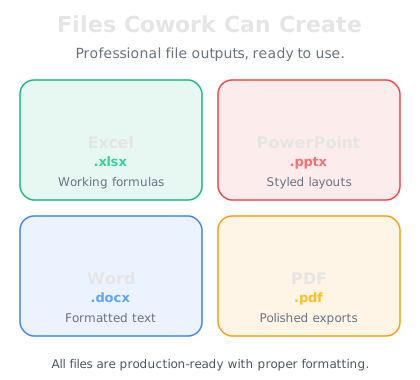
Cowork creates professional documents with working formulas, styled layouts, and polished formatting.
How Claude reads and writes files
When you set up your work folder on Day 2, you gave Claude permission to access a specific directory on your computer. Here's what that means in practice:
Reading files: Claude can open and understand the contents of files in your work folder. Drop a PDF in there, and Claude can read every page. Drop a spreadsheet, and it can analyze every cell, formula, and chart. It handles Word documents, text files, CSVs, JSON, images, and more.
Writing files: Claude creates files directly on your file system. When it builds a spreadsheet, the file appears in your work folder immediately. You can open it in Excel, Google Sheets, or any compatible app. The file is real — it's not a preview or a simulation.
Editing files: Claude can modify existing files. Ask it to update a formula in a spreadsheet, add a section to a Word document, or change the data in a CSV. It reads the current state, makes the changes, and saves the updated file.
This read-write capability is what makes Cowork an agent rather than a chatbot. It doesn't describe work — it produces work.
Knowledge Check
When Claude creates an Excel file in Cowork, what do you get?
A
A text-based table formatted to look like a spreadsheet
B
A link to download the file from Anthropic's servers
C
An actual .xlsx file on your computer that opens in Excel with working formulas
D
A screenshot of what the spreadsheet would look like
Cowork creates real files on your local file system. An Excel file created by Claude is a genuine .xlsx file with working formulas, formatting, and charts — not a simulation or a preview. It appears directly in your work folder.
Creating professional documents
Let's walk through the major document types Claude can create and what makes each impressive.
Microsoft Word (.docx) — Claude creates properly structured Word documents with headings, body text, bullet lists, tables, bold and italic formatting, page breaks, and consistent styling. These aren't raw text dumps — they're documents you'd be comfortable sending to a client or presenting to your team.
Microsoft Excel (.xlsx) — This is where Cowork really shines. Claude creates spreadsheets with:
- Working formulas (SUM, VLOOKUP, IF statements, and more)
- Formatted headers and data cells
- Conditional formatting and cell styling
- Charts and graphs based on the data
- Multiple sheets with cross-references
- Data validation and dropdown lists
Microsoft PowerPoint (.pptx) — Claude builds presentations with proper slide layouts, title slides, content slides with bullet points, image placeholders, consistent styling, and speaker notes. The output follows presentation best practices — not walls of text on slides.
PDF — Claude can generate PDF documents for reports, summaries, and any content that needs a fixed-format output.
I need a budget spreadsheet for Q1 2026. Three departments (Marketing, Engineering, Operations), monthly columns for Jan-Mar, with formulas for totals and a chart showing spend by department.
I'll create that now.
Done. I've created **q1-2026-budget.xlsx** with:
📊 **Sheet 1: Budget Overview**
- Rows for each department (Marketing, Engineering, Operations)
- Monthly columns: January, February, March
- Row totals with SUM formulas
- Column totals with SUM formulas
- Grand total in the bottom-right cell
- Conditional formatting: cells over $50K highlighted in yellow
📈 **Sheet 2: Charts**
- Bar chart showing total spend by department
- Line chart showing monthly trend across all departments
I've filled in placeholder amounts so you can see the formulas in action. Replace them with your real numbers and everything will recalculate automatically. Want me to adjust the structure?
↻ Replay conversation
Knowledge Check
Which of the following can Claude include in an Excel spreadsheet it creates?
A
Only static text and numbers — no formulas
B
Working formulas, formatted cells, conditional formatting, charts, multiple sheets, and cross-references
C
Charts and formatting, but formulas don't actually work
D
Formulas, but no charts or formatting
Claude creates fully functional Excel files. The formulas calculate, the charts render, conditional formatting responds to data changes, and cross-sheet references work. These are production-quality spreadsheets, not mockups.
PowerPoint with proper layouts
Creating a good PowerPoint presentation is one of the most time-consuming knowledge work tasks. Claude handles it well because it understands presentation structure — not just content.
When Claude builds a PowerPoint, it uses proper slide layouts: title slides have centered large text, content slides have headers with bullet points, comparison slides use side-by-side columns, and closing slides have clear calls to action.
What Claude gets right:
- Consistent font sizes and styling across all slides
- Appropriate amounts of text per slide (not paragraph dumps)
- Logical slide flow and narrative structure
- Speaker notes with talking points for each slide
- Proper use of whitespace
A practical tip: When asking for a presentation, tell Claude the audience and the purpose. "Create a 10-slide investor pitch for a seed-stage startup" produces very different output than "Create a 10-slide training deck for new employees." Context shapes everything.
Create a 10-slide presentation about our company's 2025 annual results. We hit $12M revenue (up 40%), grew the team from 25 to 48, and launched 3 new products. Audience is the board of directors.
I've created **2025-annual-results.pptx** with 10 slides:
1. **Title Slide** — 2025 Annual Results, Company Name, Date
2. **Executive Summary** — Three key wins at a glance
3. **Revenue Performance** — $12M revenue, 40% YoY growth, quarterly breakdown
4. **Revenue Breakdown** — By product line and customer segment
5. **Team Growth** — 25 to 48 employees, key hires by department
6. **Product Launches** — Overview of all 3 new products
7. **Customer Metrics** — Retention, NPS, expansion revenue
8. **Operational Highlights** — Infrastructure, process improvements
9. **2026 Outlook** — Growth targets, planned investments
10. **Discussion** — Key questions for the board
Each slide has speaker notes with talking points. The tone is professional and data-forward — appropriate for a board audience. Want me to adjust any slide?
↻ Replay conversation
Batch file operations
Single-file creation is useful, but the real power emerges when you need to work with many files at once. This is where Cowork saves hours.
Batch renaming: "Rename all 50 files in my invoices folder to follow the format YYYY-MM-ClientName-invoice.pdf." Claude reads each file, extracts the relevant metadata, and renames them all.
Batch conversion: "Take these 20 CSV files and combine them into a single Excel workbook, one sheet per CSV, with a summary sheet." Claude processes each file and builds the consolidated output.
Batch creation: "Create individual thank-you letters for each of the 15 clients listed in my clients.xlsx spreadsheet, personalized with their name, project, and total spend." Claude reads the spreadsheet, generates 15 personalized Word documents, and saves them all.
File organization: "Sort the 200 files in my downloads folder into subfolders by file type and year." Claude analyzes each file, creates the folder structure, and moves everything.
These operations would take you an afternoon. Claude handles them in minutes.
Knowledge Check
What is a batch file operation in Claude Cowork?
A
Converting all your files to a single format
B
Running a batch script that Claude writes but you execute manually
C
Having Claude process, transform, or create many files in a single task — like renaming 50 files or generating 15 personalized letters
D
Uploading multiple files to Claude's cloud storage at once
Batch operations are tasks where Claude processes multiple files in one go. Whether it's renaming, converting, creating, or organizing, Claude handles each file individually but executes the entire operation as a single task. This is one of Cowork's biggest time-savers.
Final Check
You need 12 personalized offer letters, each with a different candidate name, role, and salary pulled from a spreadsheet. What's the best approach in Cowork?
A
Ask Claude to generate one letter, then manually create the other 11
B
Create a mail merge template and ask Claude to explain how to use it
C
Give Claude the spreadsheet and ask it to create 12 individual Word documents, each personalized with the candidate's details
D
Ask Claude to write the text for all 12 letters in the chat and copy-paste each one
This is exactly what batch creation is for. Claude reads the spreadsheet, extracts each candidate's details, and generates 12 individual Word documents — each fully personalized. Real files, ready to send. No copy-pasting, no manual editing.
📄
Day 4 Complete
"Claude doesn't describe documents — it creates them. Real files, real formulas, real formatting, right on your computer."
Tomorrow — Day 5
Sub-Agents & Parallel Work
You'll discover how Claude spawns parallel sub-agents to tackle multiple tasks at once, dramatically speeding up complex operations.