Day 4 of 28 Β· Vibe Coding Challenge
Setting Up Your Environment
β± 7 min
π Beginner
Today you set up the tools you'll use throughout this challenge. We'll install an AI code editor, set up an app builder account, and make sure everything works.
By the end of today, you'll be ready to build.
What you'll set up
We'll configure two tools β one from each category:
Cursor (in-editor assistant) β for when you want control over your code, to build complex projects, and to work with existing codebases.
Bolt (app builder) β for when you want to go from idea to working app in minutes, with zero setup.
You don't need both right away. If you just want to get started fast, set up Bolt first β it runs in your browser with nothing to install.
Setting up Bolt
Bolt runs entirely in your browser. Setup takes about 60 seconds:
1. Go to bolt.new
2. Sign up with your Google or GitHub account
3. That's it β you're ready to build
Bolt gives you free credits to start. You can build several projects before needing to upgrade.
Build me a simple to-do app with a clean design.
Setting up your project...
Done β Your to-do app is ready:
β
Add new tasks with Enter key
β
Check off completed tasks
β
Delete tasks with swipe or click
β
Tasks persist in local storage
β
Clean, minimal design
Preview is running in the right panel. Try adding a task!
β» Replay conversation
Knowledge Check
What do you need to install to use Bolt?
A
Docker and a local server
C
Nothing β it runs entirely in your browser
That's the beauty of app builders like Bolt β zero setup. Open a browser, sign in, start building. Everything runs in the cloud. No local installation required.
Setting up Cursor
Cursor requires a local install, but it's straightforward:
1. Go to cursor.com and download the installer for your operating system
2. Run the installer β it works like any other app
3. Open Cursor. If you've used VS Code before, it'll feel immediately familiar (it's built on VS Code)
4. Sign in to Cursor and choose a plan (the free tier works for learning)
5. Enable the AI features when prompted
If you have VS Code extensions and settings, Cursor can import them automatically.
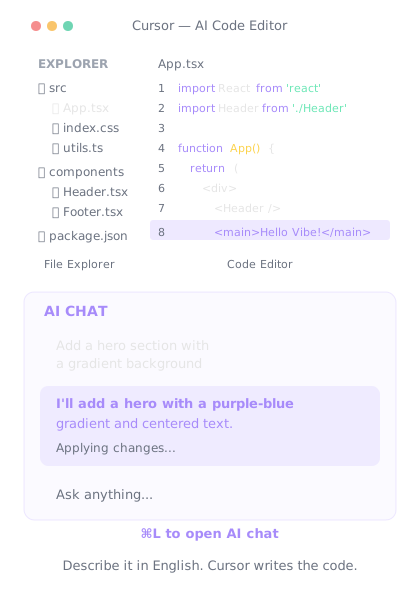
Cursor β it looks like VS Code, but with AI superpowers built in.
Your first Cursor test
Let's make sure everything works. Open Cursor and try the AI chat:
1. Press Cmd+L (Mac) or Ctrl+L (Windows) to open the AI chat panel
2. Type a simple request
Create a simple HTML page that says "Hello, Vibe Coding!" with centered text and a gradient background.
I've created `index.html` with:
π¨ Full-screen gradient background (purple to blue)
π "Hello, Vibe Coding!" centered on the page
β¨ Modern font (Inter from Google Fonts)
π± Responsive β looks good on any screen size
Open the file in your browser to see it. Want me to add anything β animations, a subtitle, a button?
β» Replay conversation
Knowledge Check
What keyboard shortcut opens the AI chat in Cursor?
C
Cmd+Shift+P / Ctrl+Shift+P
Cmd+L (Mac) or Ctrl+L (Windows) opens the AI chat panel in Cursor. There are other shortcuts too β Cmd+K for inline edits, Tab for autocomplete β but the chat panel is where you'll have most of your conversations.
Optional extras
These aren't required for the challenge, but they'll make your life easier:
Node.js β If you want to run JavaScript projects locally. Download from nodejs.org. Most projects we build will work without it (Bolt handles everything in the cloud), but it's useful if you want to run things on your own machine.
Git β Version control for your code. We'll cover this on Day 17. If you don't have it, don't worry about it yet.
A deployment account β We'll deploy projects later using Vercel or Netlify. Both have free tiers. Set up accounts when we get to Day 14.
Knowledge Check
Which tool should you set up first if you want the fastest path to building something?
A
Cursor β install the editor and configure everything
B
Bolt β sign up in your browser and start building immediately
C
Git β set up version control before anything else
D
Node.js β install the runtime first
Bolt runs in your browser with zero installation. If you want to build something in the next 60 seconds, Bolt is the fastest path. You can always add Cursor, Node.js, and Git later as you need more control.
Troubleshooting
Cursor won't install? Make sure you have enough disk space (about 500 MB) and that your OS is up to date. Cursor supports macOS 10.15+, Windows 10+, and most Linux distros.
Bolt isn't loading? Try a different browser. Chrome and Edge work best. Disable ad blockers if the preview panel isn't rendering.
AI features aren't working? Make sure you're signed in and have an active plan. Both Cursor and Bolt have free tiers, but you need to create an account.
Final Check
What two categories of tools did you set up today?
A
A database and a server
B
An in-editor assistant (Cursor) and an app builder (Bolt)
C
A design tool and a testing tool
D
A frontend framework and a backend framework
You now have both types of AI coding tools ready. Cursor for when you want to control every file, and Bolt for when you want to build fast from a prompt. Tomorrow, you'll put them to work.
βοΈ
Day 4 Complete
"Tools are set up. The hardest part is starting β and you just did."
Tomorrow β Day 5
Your First Vibe-Coded Project
Time to build something real β you'll create your first project from a single prompt and watch it come to life.