Build a LinkedIn Summariser Chrome Extension
This is the lesson where everything comes together.
On Day 5, you learned how to use AI to read and summarise LinkedIn profiles. On Day 12, you compared candidate profiles against job specifications. Today, you're going to build a tool that does both — automatically — right inside your browser.
You're going to use AI to build a Chrome extension that reads the LinkedIn profile you're currently viewing, compares it against your saved job spec, and gives you a fit score, key matches, gaps, and suggested interview questions. All without leaving the page.
No coding experience needed. You won't write a single line of code yourself. AI writes everything. You just guide it. This is vibe coding for recruiters — and it's about to change how you source.
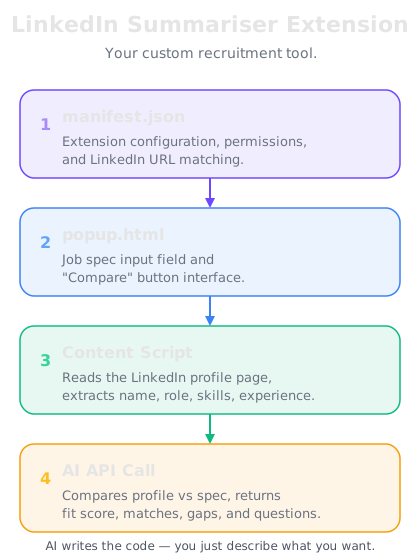
What you'll build
Your Chrome extension will do four things:
1. Read the current LinkedIn profile. When you're on someone's LinkedIn page, the extension extracts their headline, about section, experience, education, and skills.
2. Compare against a job spec. You paste your job specification into the extension, and it saves it for repeated use.
3. Generate a fit analysis. The extension sends both the profile data and the job spec to an AI API, which returns a fit score (out of 100), key matches between the candidate and the spec, notable gaps, and suggested interview questions based on the gaps.
4. Display results in a popup. Everything appears in a clean panel right in your browser — no switching tabs, no copy-pasting.
This ties together the skills you've built throughout this course. The difference is that now it happens with one click instead of manual prompting.
Step 1 — Setting up the project
You'll use ChatGPT, Claude, or any AI assistant to generate all the code. Open your preferred AI tool and start with this prompt:
"I want to build a Chrome extension for recruiters. It should read LinkedIn profile pages, let me save a job spec, and then compare the profile against the spec using AI. Give me a complete project structure and start with the manifest.json file. Use Manifest V3. The extension needs a popup with a text area to enter a job spec, a 'Save Spec' button, and an 'Analyse Profile' button."
The AI will generate your manifest.json — this is the configuration file that tells Chrome what your extension does, what permissions it needs, and which files to load. It looks something like this:
The key permissions you need are activeTab (to read the current page), storage (to save the job spec), and scripting (to run a content script on the LinkedIn page).
Don't worry about understanding every line. The AI will explain anything you need. Your job is to guide it, not to become a developer.
Step 2 — Building the popup interface
Next, ask AI to create the popup — the small panel that appears when you click the extension icon.
"Now create the popup.html and popup.css files. The popup should have: a text area where I can paste a job specification, a 'Save Spec' button that saves the spec to Chrome storage, a status indicator showing whether a spec is saved, an 'Analyse Profile' button that's only active when a spec is saved and I'm on a LinkedIn profile page, and a results area that shows the fit score, matches, gaps, and interview questions. Make it look clean and professional — dark theme, good typography, about 400px wide."
The AI will generate the HTML for the layout and CSS for the styling. It'll also create a popup.js file that handles the button clicks — saving the spec, triggering the analysis, and displaying results.
Pro tip: If you don't like the design, just tell the AI. "Make the fit score larger and colour-coded — green for 80+, amber for 60-79, red for below 60." It will update the code instantly.
Step 3 — Reading the LinkedIn profile
This is the clever part. You need a content script — a piece of code that runs on the LinkedIn page and extracts the profile data.
"Create a content.js file that reads the current LinkedIn profile page. It should extract: the person's name, headline, about/summary section, work experience (company names, titles, durations, descriptions), education, and skills. Structure the data as a clean JSON object. Handle cases where some sections might be missing."
The AI will write a script that reads the HTML structure of LinkedIn pages and pulls out the relevant information. LinkedIn's page structure changes occasionally, so the AI might need to adjust selectors — but this is exactly the kind of problem AI is good at solving. If something doesn't work, just paste the error message back into the AI and say "fix this."
Important note: This content script reads publicly visible information on the profile page you're already viewing. It doesn't access anything you can't already see in your browser.
Step 4 — Connecting to the AI API
Now you connect everything to an AI service that does the actual analysis. This step requires an API key from OpenAI, Anthropic (Claude), or another AI provider.
"Create a background.js file that receives the LinkedIn profile data and saved job spec, sends them to the OpenAI API (or Claude API), and returns a structured analysis. The prompt to the AI should be: 'Compare this candidate profile against this job specification. Return a JSON object with: fitScore (0-100), keyMatches (array of strings), notableGaps (array of strings), interviewQuestions (array of 3-5 questions targeting the gaps), and summary (2-3 sentence overall assessment). Be honest and specific in your analysis.' Include error handling for API failures."
Getting an API key: If you don't already have one, go to platform.openai.com or console.anthropic.com, create a free account, and generate an API key. The cost for this kind of analysis is typically a fraction of a penny per request — analysing 100 profiles would cost well under a dollar.
The AI will generate the background script that makes the API call, processes the response, and sends the results back to the popup for display.
Step 5 — Putting it all together
Here's the prompt that ties everything together. If you want to generate the entire extension in one go rather than step by step, use this master prompt:
"Build me a complete Chrome extension (Manifest V3) for recruiters. The extension should: 1) Have a popup with a text area to paste and save a job specification, an 'Analyse Profile' button, and a results display area. 2) Include a content script that extracts name, headline, about section, experience, education, and skills from LinkedIn profile pages. 3) Include a background script that sends the profile data and job spec to the OpenAI API and returns a fit score (0-100), key matches, gaps, interview questions, and a summary. 4) Display results in the popup with colour-coded fit score (green 80+, amber 60-79, red below 60). 5) Save the job spec in Chrome storage so it persists between sessions. Make it look professional with a dark theme. Include all files: manifest.json, popup.html, popup.css, popup.js, content.js, and background.js. Add a placeholder for the API key that I'll fill in."
This single prompt will generate your entire extension. Copy each file into a folder on your computer.
Step 6 — Loading and testing your extension
Once you have all the files saved in a folder on your computer, loading the extension into Chrome takes 30 seconds:
1. Open Chrome and go to chrome://extensions
2. Turn on Developer mode (toggle in the top right corner)
3. Click "Load unpacked" and select your extension folder
4. The extension icon will appear in your Chrome toolbar
5. Navigate to any LinkedIn profile, click the extension icon, paste your job spec, save it, and click "Analyse Profile"
If something doesn't work — and something probably won't on the first try — that's completely normal. Copy the error message (right-click the extension icon > "Inspect popup" to see errors), paste it back into your AI tool, and say "I'm getting this error when I click Analyse Profile: [error message]. Fix it." The AI will diagnose the problem and give you updated code.
This debug-and-fix loop is how vibe coding works. You don't need to understand the error. You just need to show it to the AI.
Taking it further
Once your basic extension works, you can enhance it with a few more prompts:
Save multiple job specs: "Update the extension so I can save multiple job specs with names, and select which one to compare against from a dropdown."
Export results: "Add an 'Export to PDF' button that downloads the analysis as a formatted document I can share with hiring managers."
Batch analysis history: "Add a history feature that stores the last 50 analyses so I can review previous candidates."
Each enhancement is just one prompt away. You're not limited to what you build today — the extension grows with your needs.
This is the real power of what you've learned in this course. You're not just using AI as a writing tool anymore. You're using AI to build tools that make you more effective. That's a competitive advantage that very few recruiters have today.